

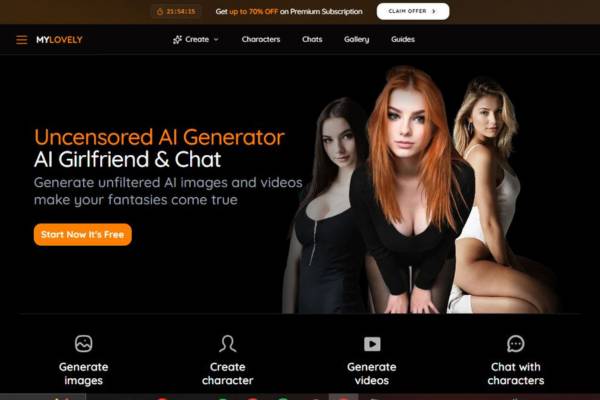
What I love about MyLovely AI is it completely bypasses the “content restricted” problem. You know, you put in a prompt, press enter, and – WHAM! – “content restricted”? Ugh. MyLovely AI just doesn’t play that shit.
Honestly, I was skeptical at first. “Join us! We’re unrestricted!” yeah yeah sure. Most of the AI’s are like lawn chairs, they collapse under a little bit of stress. But, I’ll be damned if MyLovely AI actually pulls it off. It’s unrestricted and offers zero fuss.
With MyLovely AI, you can generate uncensored, photorealistic images and videos without content restrictions, and without censored images – giving you a limitless creative potential, and ultimate realism, according to their website.
Yeah yeah yeah, that’s great on paper. But, how does it actually feel?
Well, for starters, it does feel different.
How to Generate AI Images Step-by-Step Using the Image Generator
Step 1: Open the Image Generator

The first time you start the application, you will be at the main page with the large header “Generate Stunning Images” and a button that says Generate image.
At the top of your screen, you will see the main menu:
- Create
- Characters
- Chats
- Gallery
- Guides
This is your main navigation.
To create images, simply press the Generate image button. This will take you to the image creation workflow.
Step 2: Select a Character (This is the Most Crucial Part)

Once you press Generate image you will have a pop-up window called Select Character.
Here is where you decide what the image is going to be about.
You will find here:
- Search for character bar
- Tab such as All, Favorites, and My Characters.
- Two buttons:
- Create New
- Browse Gallery.
If you don’t have any characters you will have a pop-up that says No characters found.
Two options are available for you.
Option 1: Browse Gallery Press Browse Gallery to use an already-made character from the system or the community.
Option 2: Create New Press Create New if you wish to create a custom character.
If you’re a beginner, start with the gallery.
Step 3: Choosing a Character from the Gallery

Now, if you chose to Browse Gallery, you’ll be presented with a grid of characters.
For each character, you’ll be able to see:
- A preview of what the character looks like.
- The character’s name.
- The character’s age.
- A “Verified” tag, if applicable.
You can scroll through and view all of the characters.
Whenever you see a character you like, just click it. The character will now be chosen for your image.
This is a key step, as the AI will use this character as a reference point for your generated image.
Step 4: Make your character (optional, but great way to improve the results)

If you clicked Create New then you’ll be taken to a character creation page.
Here you can define your character.
- You’ll see these text boxes:
- Name:
- Name of the character Description:
A text describing your character, the way they look, their personality etc
Then further down you can fill in even more details such as:
- Race
- Age
- Figure
- Breasts
- Eyes
- Hair and color
- Occupation Style
Then you can add hobbies and relationship type
All these will help AI understand your character.
On the left you will see a preview box and a Generate Preview button
When you click Generate Preview it will generate a sample image of your character
If you are satisfied, you can hit Publish character to make the character live
Then you can use that character for generating images.
Step 5: Specify the Image You Want and Generate It

After you have chosen your character, you will notice the image generator section at the bottom.
You will notice a text box that reads as follows:
- Describe your image you want to create…
Here you will enter what you want your image to look like.
For instance, you can enter:
“A full body portrait standing in a city at night with neon lights, realistic lighting, high detail”
Underneath the prompt section, you will notice buttons that read as follows:
These buttons will allow you to define what your image will look like (e.g. style, orientation, etc).
- To the right, you will notice the Generate button
- Click the Generate button to generate your image.
The AI will then render your image.
What “Uncensored” Actually Means Here (And Why It Matters)
Let’s clear this up first, because “uncensored” gets thrown around like confetti. It’s not just marketing fluff.
On MyLovely AI, uncensored means:
- No “content blocked” popups
- No limits on the level of realism
- No limits on characters
- No limits on themes or topics
- Total control over your prompts
The MyLovely AI engine was built to generate images from your prompts within the bounds of reality and art. And that’s important. See, creativity does not do well in a straightjacket. In fact, it’s pretty much guaranteed to die in there.
So if you’re the sort of person who wants to play with different characters, explore story ideas, or just explore imagery, this is a tool that can make all of those things possible again.
First Impressions: It Doesn’t Feel Like a Toy
This is the section where I was most surprised. The vast majority of AI image generators feel like toys. Nice, but ultimately a novelty and not built for serious work. MyLovely AI actually feels designed.
As if someone sat down and said “If nobody was looking over our shoulder, what would we want?” Obviously, that includes your privacy too.
It says they don’t track what you do and any generated images stay private, secure, anonymous, etc… Well, let’s be honest, that’s pretty important too. None of us want the world to see what we really generate at 2am in the morning…
The Real Magic: The Experience
This is the part that gets me all sentimental. I know, I know, it’s software. But hear me out. When you enter a prompt in MyLovely AI, you do so without reservation.
You don’t worry about whether:
- The prompt will be rejected
- The prompt is “okay”
- The AI will say no You simply produce content.
It’s similar to the experience of many of the early internet applications when the digital world still seemed like the Wild West and no one had erected fences yet. It’s a strange sort of freedom. And a little addictive, if I’m being honest.
Quality of Images — The Scroll-Stopper
Now, onto the images, because as much freedom as the images might have, no one wants to look at some melty mess of plastic. The Lovely images focus more on realistic images, and that’s something they generally pull off.
The skin, the lighting, the expression on the face, and even some of the textures (hair, fabric, etc) are well rendered in the images.
In particular, I liked how accurate they were with: Skin texture accuracy Lighting accuracy Facial expression accuracy Amount of style variation Consistency between the images The images are not in the uncanny valley I like to make a distinction between the two.
Who This Is For (And Who This Is Not For)
Let me tell you. This isn’t for everyone.
This is for you if you are:
- Target Audience Reason
- Content Creators
- Total control over idea
- Authors and Writers
- Illustrate your characters
- Content Experimenters
Total freedom Role-players Illustrate characters as they would look IRL Hobbyists Total freedom to create anything If you only require SFW, vanilla content then you don’t need this. That would be akin to purchasing a Lamborghini just to go to the post office.
A Psychological Side Effect Nobody Mentions
Now, this was a surprise. Having access to unguarded tools opens up your mind. You no longer pre-censor ideas. You don’t sit there thinking ‘there’s no point asking it to do that’ anymore. The AI stops feeling like a guardian, and starts feeling like a partner. It’s a strange kind of liberation.
Speed and Ease of Use
You don’t need a PhD in prompt engineering. Seriously.
It works like this:
- Type your idea
- Click generate
- Watch it appear
That’s it. No fighting menus. No confusing settings. No headaches. Their neural network analyzes prompts and generates high-resolution outputs quickly, making the process smooth and accessible even for beginners. It’s dangerously easy to lose track of time.
Free vs Premium (The Truth)
It does have a free version. They provide free daily credits to allow users to sample the paid generation options.
Here are the differences between the free and paid version:
Feature Free Premium
Daily generations
Limited Much higher Generation speed
Normal Faster Quality High Higher / 4K Limits
Some Much fewer The free version is sufficient to properly test it. Makes sense. This creates trust.
The One Thing That Makes It Dangerous (In a Good Way) Freedom
That’s it. Not speed. Not quality. Not realism. Freedom. Once you use a truly uncensored generator, everything else feels restrictive. You notice the walls. The invisible rules. The quiet limitations. And it’s hard to go back.
Final Verdict — Should You Try It?
Yes. Especially if you’ve ever felt frustrated by restricted AI tools. MyLovely AI’s uncensored image generator isn’t just another AI toy. It’s a creative sandbox without someone constantly tapping your shoulder saying “don’t do that.”
It feels open. It feels honest. And honestly? It feels like how AI tools should have been from the start. If you’re curious, just try the free credits.
Worst case? You waste ten minutes. Best case? You discover a tool that quietly becomes your favorite creative escape. And yeah… that’s exactly what happened to me.
